How to Get Alerted on Slack When Your Site Goes Down
TL;DR

Email alerts are easy to miss in a busy inbox. When a production website or API goes down during the workday, routing alerts into Slack puts the incident in front of the people who can act.
This guide covers the general pattern first (webhook → channel → assign to monitors → tune noise), then the exact steps in Acumen Logs for uptime, synthetic, API, and heartbeat monitors.
Why Slack works better than email for downtime
- The right channel is already open during the workday
- The whole on-call or engineering group sees the same alert
- You can keep
#incidentsloud and#monitoring-lowquieter - Test alerts are easy to verify before a real outage
Slack is not a replacement for good monitor rules. Pair it with a consecutive-failure threshold so a single network blip does not page everyone. See how to prevent false alarms.
The general setup pattern (any monitoring tool)
- Create a Slack app / incoming webhook for a dedicated channel
- Add that webhook as an alert destination in your monitoring tool
- Send a test message and confirm delivery
- Assign the channel to the monitors that matter
- Set how many consecutive failures must occur before notify
- Mute or schedule maintenance windows during planned deploys
If you do not have an uptime monitor yet, start with how to set up uptime monitoring.
How to set this up in Acumen Logs
Step 1: Create a Slack Incoming Webhook
- Go to api.slack.com/apps and click Create New App.
- Choose From scratch, name it something clear (for example Acumen Logs Alerts), and select your Slack workspace.
- In the left sidebar, open Incoming Webhooks and toggle it On.
- Click Add New Webhook to Workspace, pick the target channel (such as
#incidentsor#monitoring), and copy the webhook URL.
Keep the webhook private. Anyone with the URL can post to that channel.
Step 2: Add the Slack channel in Acumen Logs
- Log in to Acumen Logs and open Settings → Alert Channels.
- Select Slack, paste the webhook URL, and give the channel a clear name (for example Engineering Slack – incidents).
- Click Test Alert and confirm the test message arrives, then save.
Slack alerts are available on paid plans starting from the $5/month Solo plan.
Step 3: Assign the channel to each monitor
Connecting Slack does not automatically alert for every monitor. Assign the channel per monitor so critical paths can page harder than low-priority pages.
- Open the monitor (uptime, synthetic, API, or heartbeat)
- Find the alert / notification settings
- Select your Slack channel
- Save
Example split: checkout and payment monitors → #incidents; marketing pages → #monitoring-low.
Step 4: Set consecutive failure count (reduce false alarms)
On each alert channel or monitor alert rule, set how many consecutive failed checks must occur before Slack is notified:
- Critical (auth, payments, checkout): often 1 failure
- Standard pages: often 2–3 consecutive failures
Also use maintenance windows during planned deploys so intentional downtime does not look like an incident.
Step 5: Prove it once, then leave it running
- Trigger a controlled failure (wrong URL, forced fail, or a short test outage)
- Confirm Slack received the alert in the right channel
- Confirm the payload has enough context to start triage (monitor name, status, time, link back to the check)
- Point the monitor back at the real URL
What to alert on in Slack
- Homepage / app availability (uptime)
- Login or checkout journeys (synthetic)
- Payment or auth APIs (API monitors)
- Backups and cron jobs (heartbeats)
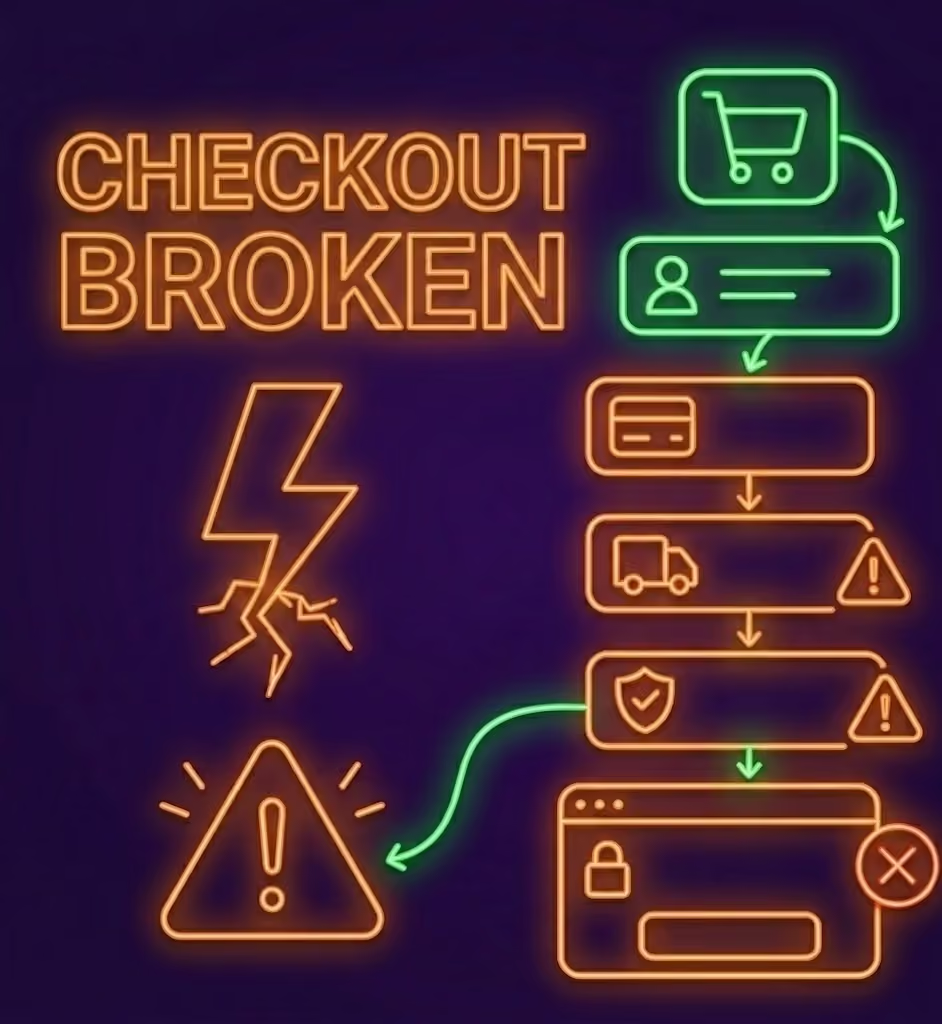
A green homepage uptime check can still hide a broken checkout. If revenue depends on a journey, put that journey on Slack too.
Start free on Acumen Logs pricing, add Slack from Solo, and keep noise down with consecutive-failure thresholds.
- Put downtime alerts in a Slack channel your team already reads.
- Assign Slack per monitor so critical paths can be louder than low-priority pages.
- Use consecutive failure counts and maintenance windows to cut false alarms.
- Test the alert path once before you trust it in a real outage.