← All Monitoring Topics

E-Commerce Monitoring

Protect revenue with automated checkout monitoring, cart testing, payment gateway validation, and real-time transaction drop-off alerts.

Related Articles

Frequently Asked Questions

API & Webhook Monitoring

WooCommerce stopped sending emails and webhooks after a plugin update. How can I catch this?

Up arrow icon

One of the biggest risks of managing a WooCommerce store is that a seemingly harmless plugin update can conflict with your payment gateways, webhooks, or email dispatchers. Your store looks fine to visitors, but post-purchase automations completely break behind the scenes.

Instead of waiting for customers to complain about missing order confirmations, set up Acumen Logs API Monitoring to run scheduled test payloads against your critical webhooks. You can also use Synthetic Monitoring to run automated test purchases on a staging environment before pushing plugin updates to production.

Read full answer →
E-Commerce Monitoring

My Shopify sales suddenly dropped to zero but my site is still online. What happened?

Up arrow icon

When traffic remains steady but sales stop completely, it is rarely a coincidence. Often, a third-party app update, a custom theme code change, or a broken payment gateway API has caused a "silent failure." Because the Shopify servers are technically online, standard uptime monitors will not alert you.

To catch this before you lose revenue, use Acumen Logs Synthetic Monitoring. You can record a test journey that clicks "Add to Cart" and navigates to the checkout screen. Acumen Logs will run this journey in a real browser on a schedule. If an app conflict blocks the button, the journey fails, and your team gets an instant Slack or email alert with a screenshot of the broken checkout.

Read full answer →
E-Commerce Monitoring

Will synthetic checkout tests create fake orders in my store?

Up arrow icon

Synthetic checkout tests can create orders or other side effects if they submit a real checkout. Configure and verify the journey before running it on a schedule:

  • Prefer a staging store and payment sandbox: Use test products, test accounts, and sandbox payment credentials when testing through order confirmation.
  • Stop before submission when appropriate: On a live store, stop before the final order or payment submission. Earlier steps can still reserve inventory or trigger emails, so check your store’s behaviour.
  • Verify side effects: After a controlled test, check for created orders, charges, inventory holds, emails, and other downstream actions. A 100% discount code may still create an order.
  • Exclude test traffic from analytics: Filter monitor runs where possible so they do not skew conversion metrics.
Read full answer →
E-Commerce Monitoring

How can I monitor my ecommerce checkout flow for silent failures?

Up arrow icon

Your storefront can be online while a customer journey is broken. An uptime check can confirm that a URL responds, but it does not click Add to Cart, complete a form or verify that the checkout screen works. A theme change, script error or payment or shipping service issue can interrupt a purchase even when the homepage looks normal.

Test the journey as a customer would: select a product and its options, add it to the cart and proceed through checkout. Check the expected product and quantity, shipping options and any error messages. Repeat important checks on mobile and after theme, app or checkout changes.
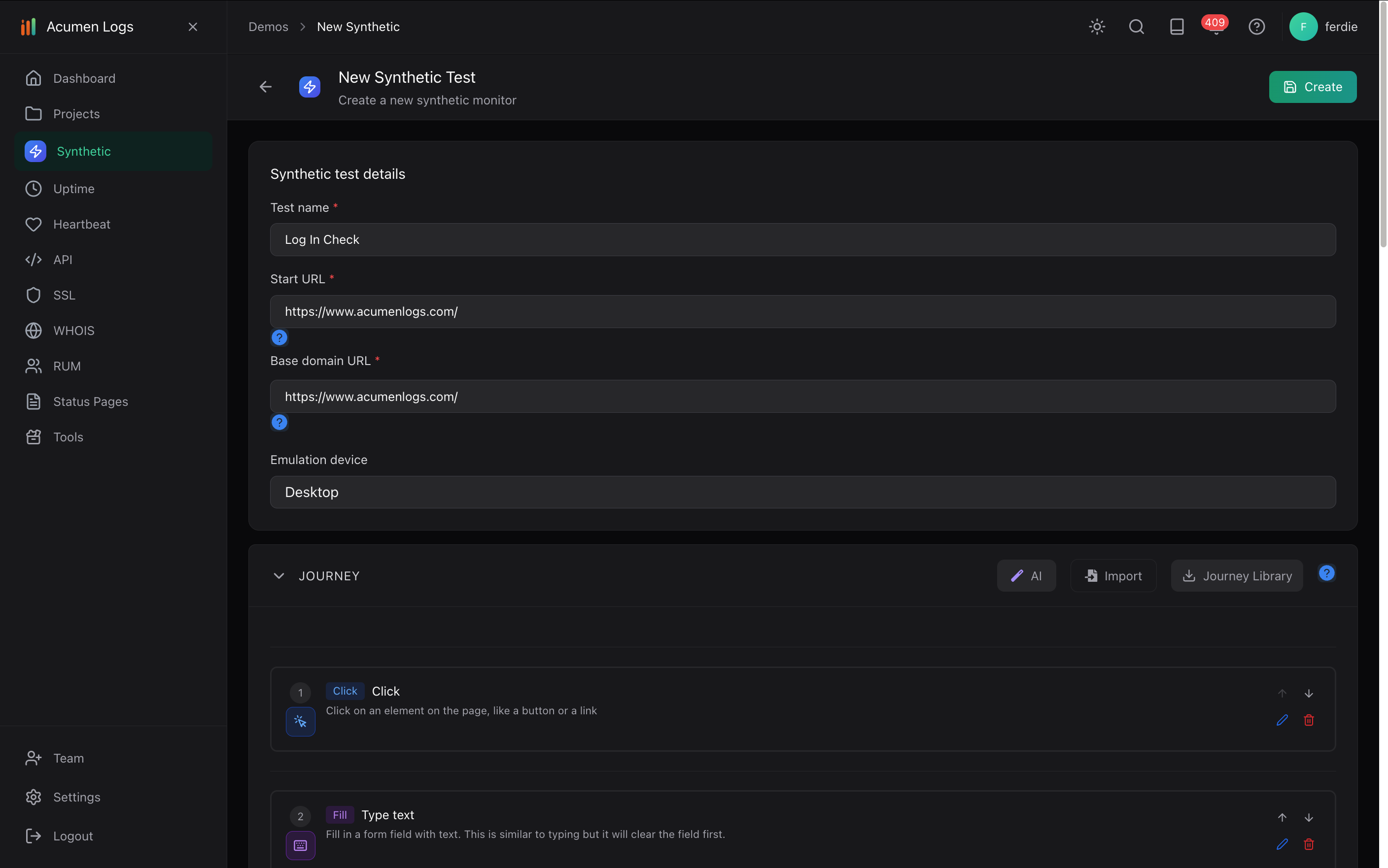
How to set this up in Acumen Logs

  1. In your project, select Create New Synthetic Test. Give it a name such as Checkout – Production and enter the product or store page as the Startup Page URL.
  2. Choose an Emulated Device. Build the journey manually or use the Chrome recorder to capture product selection, Add to Cart and the steps up to checkout.
  3. Add checks for the expected cart and checkout elements or text, then save the journey and test. Use Run on the Synthetic Test Dashboard to validate the flow.
  4. Review the step results, screenshots, console errors and network requests if the run fails. Configure alerts and, on a plan that supports it, enable a schedule.
  5. Pair the journey with uptime monitoring if you also want to check whether the storefront URL responds.
New synthetic test details and journey setup.
Create a synthetic test and define the customer journey.
AI journey generator showing the checkout-flow template.
The AI journey generator includes a checkout-flow template. Use a staging store and payment sandbox before testing through order confirmation.

Use a staging store and payment sandbox when testing through order confirmation. If testing a live store, stop before submitting a real order unless you have planned for it; even earlier steps can have side effects. Verify orders, charges, inventory holds and emails after a controlled test. Read more about safe checkout tests.

A passing journey only confirms the configured steps and test conditions; it cannot guarantee that every customer or payment method will work. Read the synthetic setup guide.

Read full answer →
Quality Assurance (QA)

What should I test after updating my website, theme or apps?

Up arrow icon

A small update can affect an unrelated part of a website. A theme change might alter a product page, an app may conflict with another script, or a form update might prevent an enquiry from being submitted.

After a change, check key landing pages and navigation, then test important forms and login flows. For a store, select a product, add it to the cart and check the checkout journey. Repeat important steps on mobile. Use staging and test data when possible; check for unintended orders, charges and notifications if testing a live store.
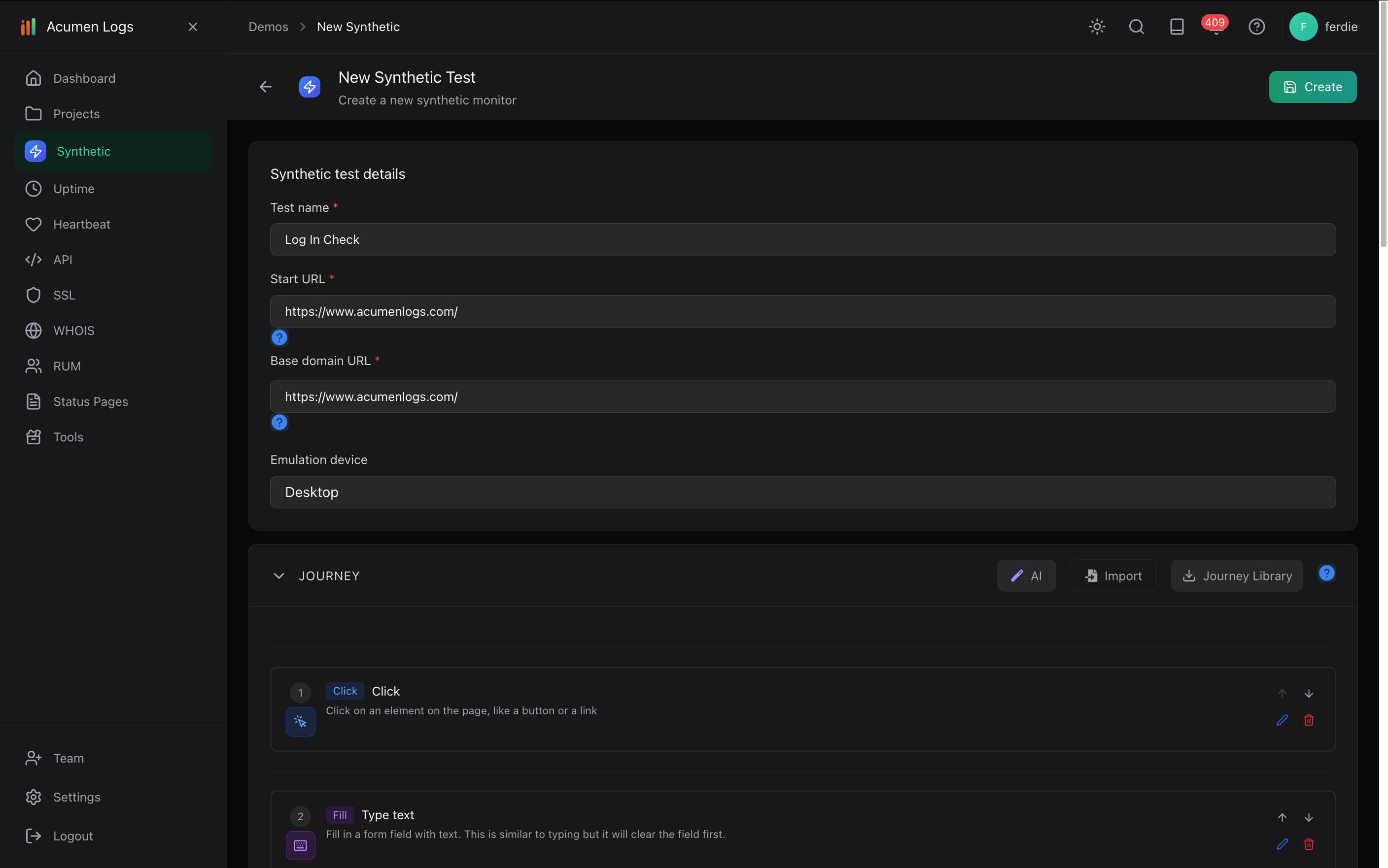
How to set this up in Acumen Logs

  1. In your project, select Create New Synthetic Test, name the test and enter the relevant starting page URL.
  2. Choose an emulated device, then record or build the key actions and checks for that journey. For example, open a product, select a variant, add it to the cart and verify the cart.
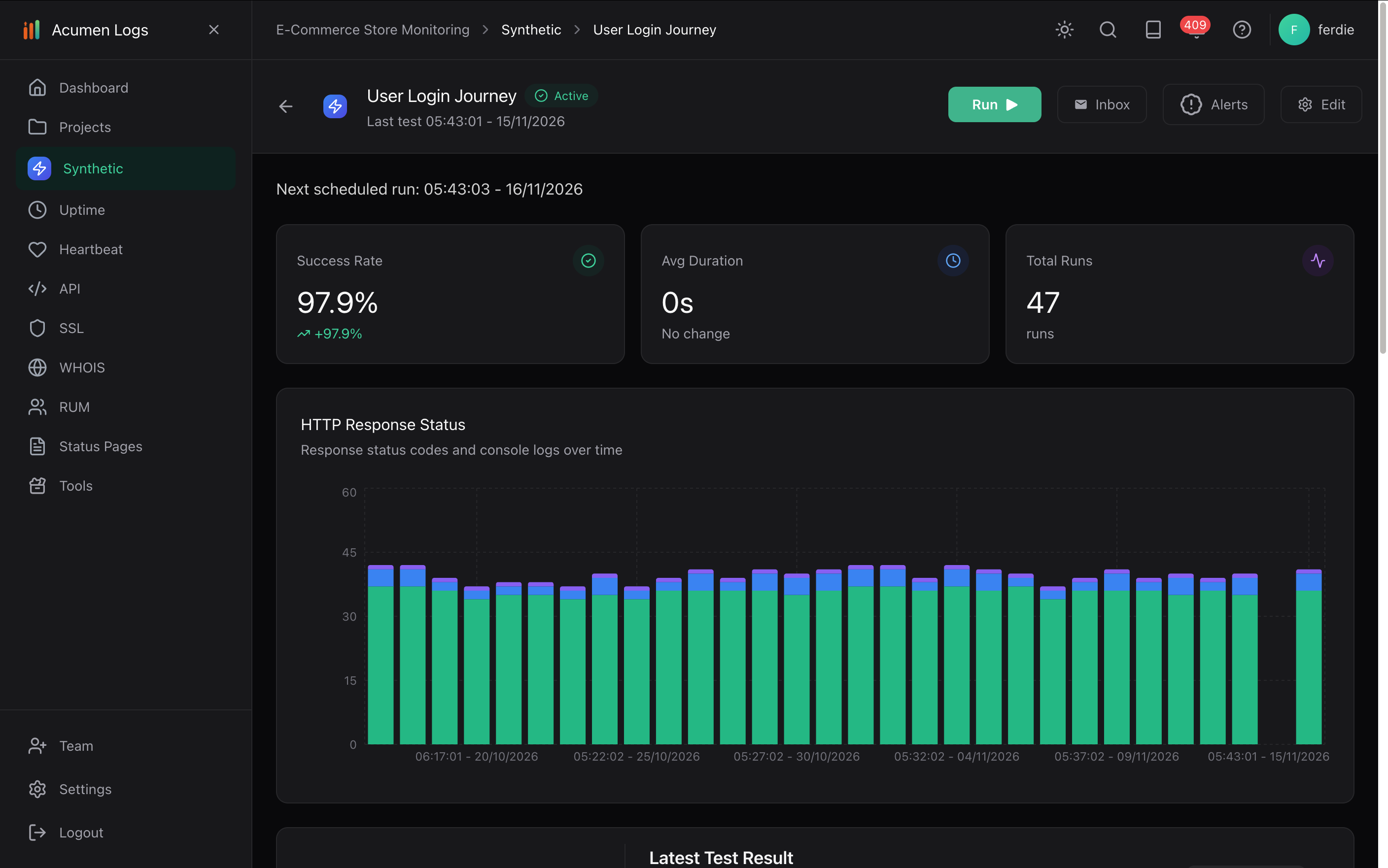
  3. Save the journey and test. After an update, use Run on the Synthetic Test Dashboard to execute it on demand.
  4. Review screenshots, console errors and network requests when a step fails. Update the journey if a legitimate change alters the flow.
  5. Where your plan supports scheduling, enable a schedule and configure alerts for the journey.
New synthetic test details and journey setup.
Set up a synthetic test and build the journey you want to check.
Synthetic journey dashboard with Run button.
Use Run on a saved synthetic journey to check it again after a change.

For checkout tests, use a staging store and payment sandbox when testing through confirmation, or stop before live submission and verify any side effects. Read about safe checkout tests.

Read full answer →
E-Commerce Monitoring

What should I check if my online store’s sales suddenly drop?

Up arrow icon

A fall in sales does not always mean your store is broken. Changes in traffic, advertising, prices, stock, delivery options or customer demand can also affect results. Identify where the drop occurred: visits, add-to-cart, checkout starts or completed purchases.

Then check the relevant journey. Visit key product pages, check stock and variants, add an item to the cart and review shipping and payment options. Compare mobile and desktop, look for customer reports and review recent theme, app and payment-setting changes.
How to investigate with Acumen Logs

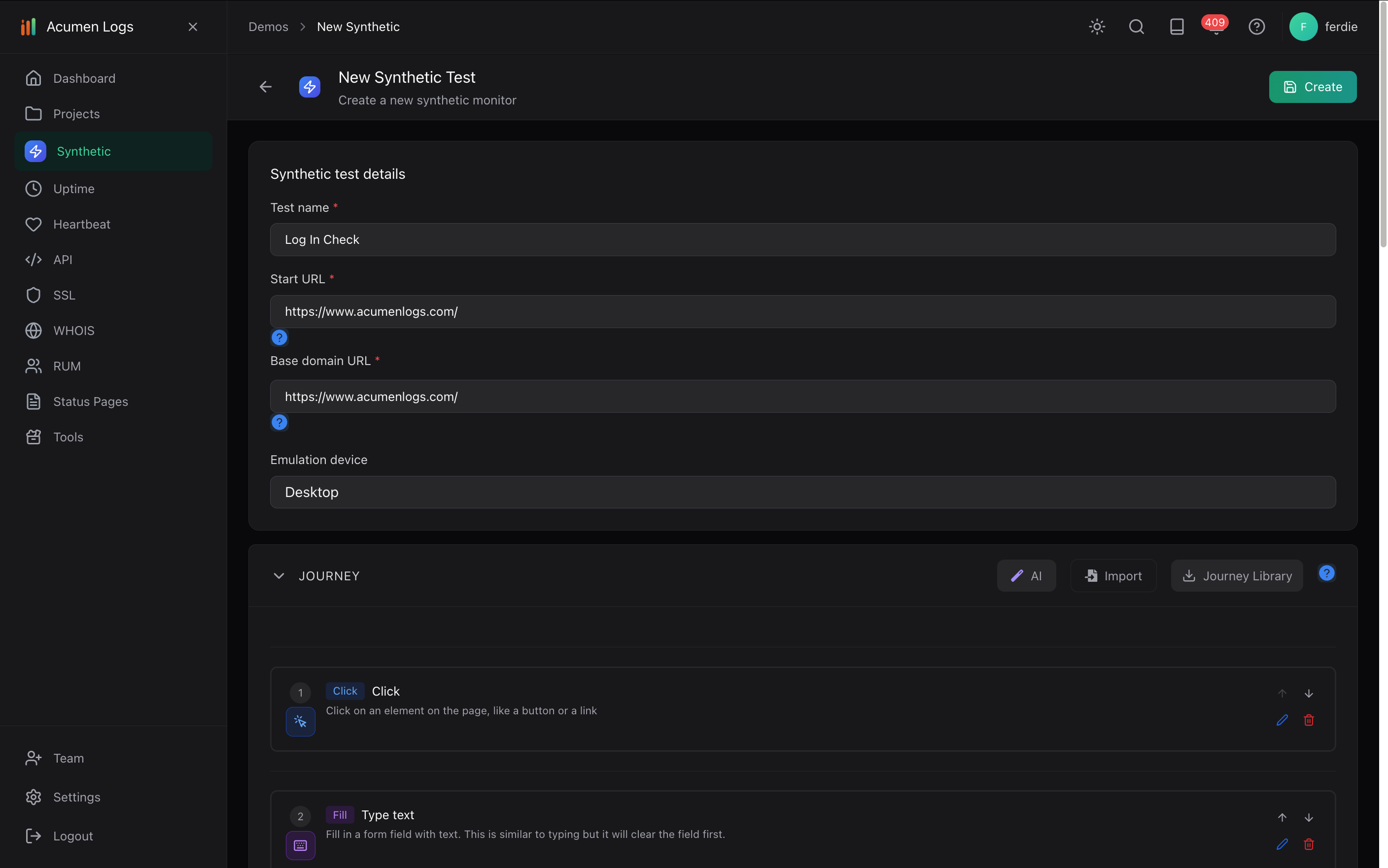
  1. In your project, select Create New Synthetic Test. Name it, enter a representative product page as the Startup Page URL and choose an emulated device.
  2. Record or build a journey that selects a product, adds it to the cart and checks that the checkout screen appears. Save it and use Run to validate the steps.
  3. Review the run's screenshots, console errors and network requests for evidence of a failed step. Test mobile and desktop journeys where appropriate.
  4. Optionally set up uptime monitoring for availability and real user monitoring to compare page performance across visitors' devices and locations.
New synthetic test details and journey setup.
Create a synthetic test for a representative customer journey.
Synthetic journey dashboard with Run button.
Review a saved journey and run it again when investigating an issue.

Use safe test data and avoid submitting a live order unless you have explicitly planned for it. Monitoring can reveal technical signals, but it cannot explain every commercial reason for a sales drop. Read the synthetic setup guide.

Read full answer →
E-Commerce Monitoring

How can I tell if my Add to Cart button has stopped working?

Up arrow icon

An Add to Cart button can look normal but fail when clicked. A theme change, script error or conflicting app may stop it from working, or it may add the wrong item or quantity.

Open a product page, select any required options and click Add to Cart. Confirm that the cart updates with the expected product, variant and quantity. Repeat the check for important products and on mobile, especially after a change.
How to set this up in Acumen Logs

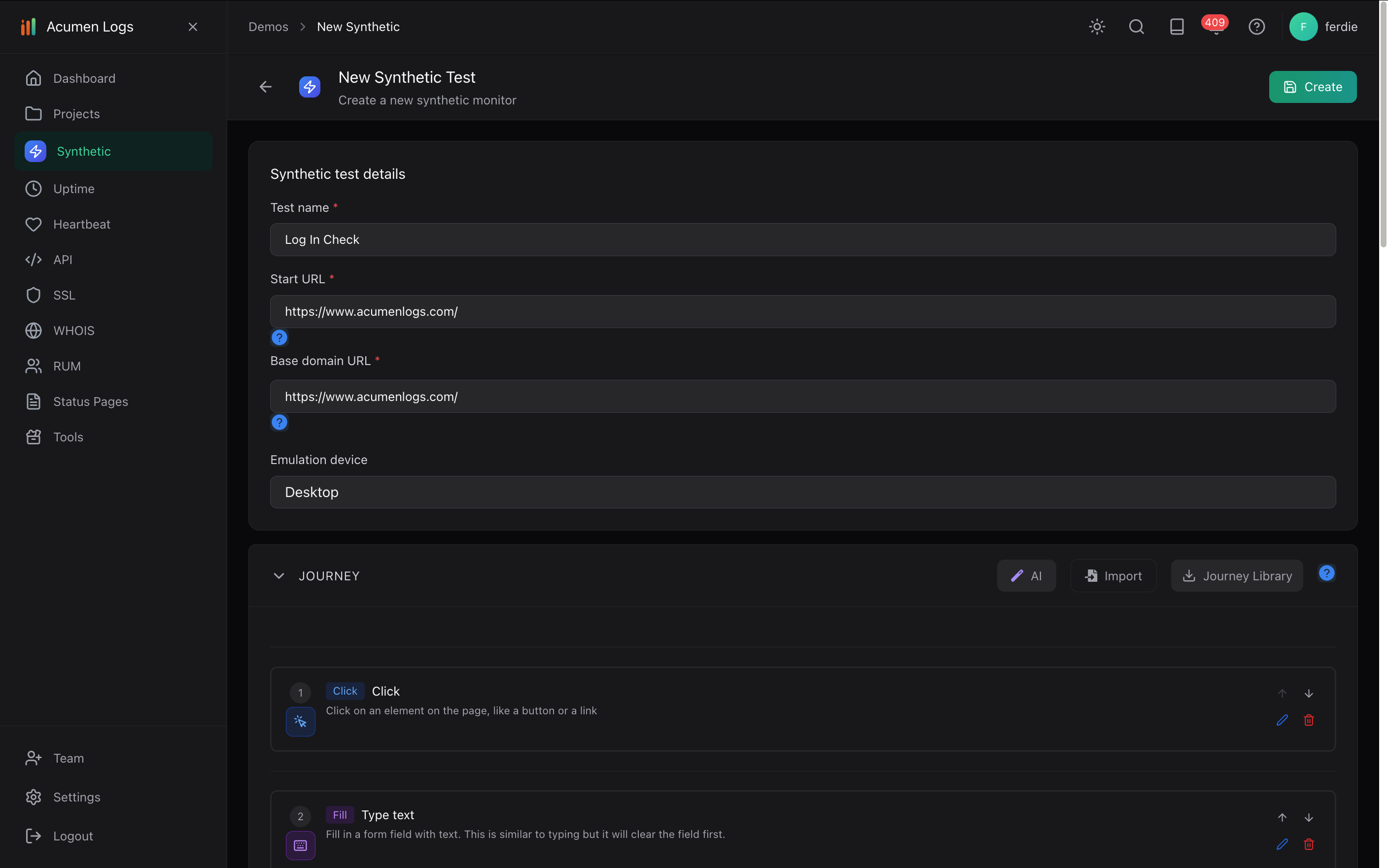
  1. In your project, select Create New Synthetic Test, give it a name and enter the product page as the Startup Page URL.
  2. Choose the emulated device you want to test. Build the journey manually or use the Chrome recorder to capture the product selection and Add to Cart steps.
  3. Add a check for the expected cart element or text, such as the product name. Save the journey and test.
  4. Use Run to test it, then inspect the result and screenshots. Configure alerts and, if your plan supports it, enable a schedule.
New synthetic test details and journey setup.
Set up a synthetic test and build the add-to-cart journey.
AI journey generator showing e-commerce templates.
The AI journey generator includes e-commerce templates, including Add to Cart. The selected example shows a checkout flow; use safe test data and a sandbox where appropriate.

Test each important product or variation separately as needed: a passing journey only covers the steps and data it actually exercises. Read the synthetic setup guide.

Read full answer →

Catch Website Failures
Before Your Customers

Catch checkout failures, API crashes, and broken user journeys before they cost you trust and money.
Verified check mark
10+ monitors for free
Verified check mark
AI test generation
Verified check mark
Real-time alerts
Verified check mark
Public status pages

Trusted by Top-tier product companies

Monitor Your Websites
Get screenshots and diagnostic logs to investigate issues. Video recording is available on Essentials and Pro.
SSL, RDAP, RUM — We Have It
Easily monitor uptime, user journeys, APIs, and more. Our AI integration and clean UI help you get set up fast.
Get Alerts and Insights
Get notified by email, Slack, Microsoft Teams, desktop notifications, or webhooks, depending on your plan and alert settings.