← All Monitoring Topics

Synthetic Monitoring

Automate synthetic browser tests, simulate user journeys, and catch critical UI breakage before customers do with actionable failure replays.

Related Articles

Frequently Asked Questions

Synthetic Monitoring

My website contact form randomly stopped working and I missed client leads. Can I monitor this?

Up arrow icon

Contact forms can suddenly break due to third-party integration updates, spam filter/reCAPTCHA failures, or layout changes. Missing out on client leads for days because a form fails silently is incredibly frustrating for any service business or agency.

You do not need to know how to code to protect your lead generation. Using the Acumen Logs AI Synthetic Journey Builder, you can type a single sentence like "Go to the contact page, fill in the form with test data, and click submit." Acumen Logs will automatically run this test in a real browser every few minutes, verifying that the "Thank You" success message appears. If the form ever breaks, you'll be notified instantly.

Read full answer →
E-Commerce Monitoring

My Shopify sales suddenly dropped to zero but my site is still online. What happened?

Up arrow icon

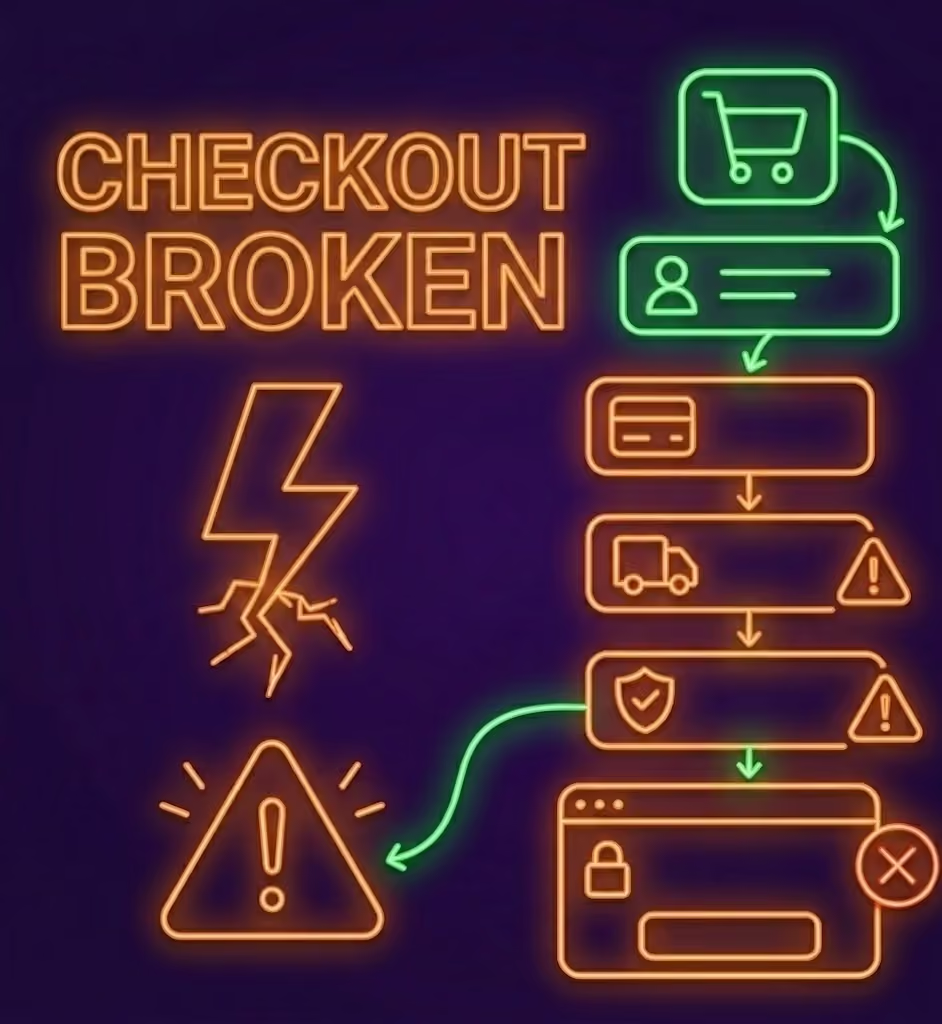
When traffic remains steady but sales stop completely, it is rarely a coincidence. Often, a third-party app update, a custom theme code change, or a broken payment gateway API has caused a "silent failure." Because the Shopify servers are technically online, standard uptime monitors will not alert you.

To catch this before you lose revenue, use Acumen Logs Synthetic Monitoring. You can record a test journey that clicks "Add to Cart" and navigates to the checkout screen. Acumen Logs will run this journey in a real browser on a schedule. If an app conflict blocks the button, the journey fails, and your team gets an instant Slack or email alert with a screenshot of the broken checkout.

Read full answer →
DevOps

What debugging evidence is captured when a monitor fails?

Up arrow icon

Every failed check in Acumen Logs attaches the context engineers need to triage the issue without trying to reproduce it manually:

  • Synthetic Journeys: Step-by-step screenshots, JavaScript console errors, and network request logs on all plans, plus full video replay and trace logs on paid plans (from Essentials).
  • Uptime & API Monitors: Region, HTTP status code, response latency, response headers, host IP, DNS resolution time, and payload assertion results.

Compare plan features on the pricing page.

Read full answer →
Quality Assurance (QA)

What happens to synthetic tests when our website layout changes?

Up arrow icon

Traditional test scripts often break whenever a developer renames a CSS utility class. In Acumen Logs, controls are matched by their visible purpose and context—such as a "Submit order" or "Add to cart" button—rather than relying solely on a brittle CSS class chain.

If a major redesign changes a step, the next run highlights the exact step with a screenshot so you can update or re-record it in the no-code builder in seconds.

Read full answer →
Quality Assurance (QA)

How can QA teams record browser tests without writing code?

Up arrow icon

QA and product teams can create automated browser tests in three code-free ways:

  • AI Synthetic Journey Builder: Describe a user scenario in one plain-English sentence and let the AI walk your site and generate the steps with screenshots.
  • Chrome Extension Recorder: Click through your live site in Google Chrome and export your recorded steps directly into Acumen Logs.
  • Visual Builder & Shared Library: Edit steps, add console/network error assertions, and save journeys as shared templates that the whole team can reuse.
Read full answer →
SaaS & Web App Monitoring

How do I monitor login flows and authenticated SaaS dashboards?

Up arrow icon

To monitor authenticated SaaS workflows with Acumen Logs Synthetic Monitoring:

  1. Store your test account credentials securely in Acumen Logs Secrets so passwords are never exposed in plain text inside step logs.
  2. Use the AI journey builder or Chrome recorder to walk through your login page, submit the form, and assert that your authenticated dashboard renders the expected elements.
  3. Every monitor also includes a built-in test inbox for flows that require email verification or password-reset links.
Read full answer →
Web Performance

What is the difference between Real User Monitoring (RUM) and synthetic monitoring?

Up arrow icon

Real User Monitoring (RUM) and Synthetic Monitoring complement each other:

  • Real User Monitoring (RUM): Uses a lightweight script in your site head to measure actual visitor performance—including page load time, Time to First Byte (TTFB), Largest Contentful Paint (LCP), and AJAX timings—broken down by country, browser, and device.
  • Synthetic Monitoring: Runs scheduled, automated browser tests from controlled global locations even when no visitors are on your site, catching functional breakages before customers encounter them.

RUM monitors share your plan's monitor allowance with uptime, API, SSL, WHOIS and heartbeat monitors. See how shared monitor allowances work.

Read full answer →
E-Commerce Monitoring

How can I monitor my ecommerce checkout flow for silent failures?

Up arrow icon

Your storefront can be online while a customer journey is broken. An uptime check can confirm that a URL responds, but it does not click Add to Cart, complete a form or verify that the checkout screen works. A theme change, script error or payment or shipping service issue can interrupt a purchase even when the homepage looks normal.

Test the journey as a customer would: select a product and its options, add it to the cart and proceed through checkout. Check the expected product and quantity, shipping options and any error messages. Repeat important checks on mobile and after theme, app or checkout changes.
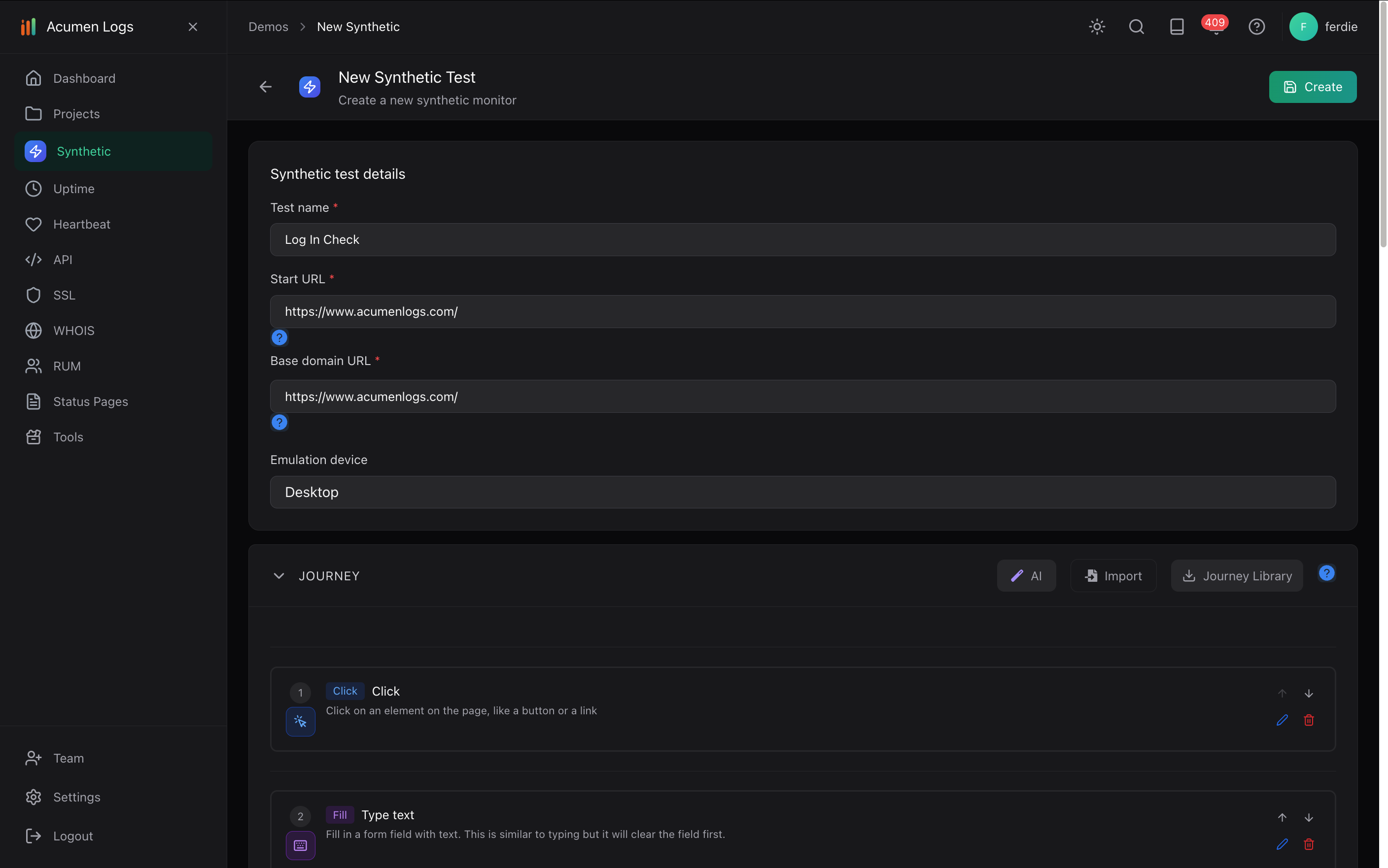
How to set this up in Acumen Logs

  1. In your project, select Create New Synthetic Test. Give it a name such as Checkout – Production and enter the product or store page as the Startup Page URL.
  2. Choose an Emulated Device. Build the journey manually or use the Chrome recorder to capture product selection, Add to Cart and the steps up to checkout.
  3. Add checks for the expected cart and checkout elements or text, then save the journey and test. Use Run on the Synthetic Test Dashboard to validate the flow.
  4. Review the step results, screenshots, console errors and network requests if the run fails. Configure alerts and, on a plan that supports it, enable a schedule.
  5. Pair the journey with uptime monitoring if you also want to check whether the storefront URL responds.
New synthetic test details and journey setup.
Create a synthetic test and define the customer journey.
AI journey generator showing the checkout-flow template.
The AI journey generator includes a checkout-flow template. Use a staging store and payment sandbox before testing through order confirmation.

Use a staging store and payment sandbox when testing through order confirmation. If testing a live store, stop before submitting a real order unless you have planned for it; even earlier steps can have side effects. Verify orders, charges, inventory holds and emails after a controlled test. Read more about safe checkout tests.

A passing journey only confirms the configured steps and test conditions; it cannot guarantee that every customer or payment method will work. Read the synthetic setup guide.

Read full answer →
Web Performance

Why does my website work on desktop but not on mobile?

Up arrow icon

A desktop page can look fine while a mobile visitor encounters an overlapping button, an unusable menu or a form that is hard to complete. Mobile visitors may also experience different performance or browser behaviour.

Try to reproduce the exact issue and record the device, browser, page and action involved. Test important journeys such as selecting a product, using search, submitting a form or proceeding to checkout. Review recent theme, app and code changes if the issue appeared recently.
How to set this up in Acumen Logs

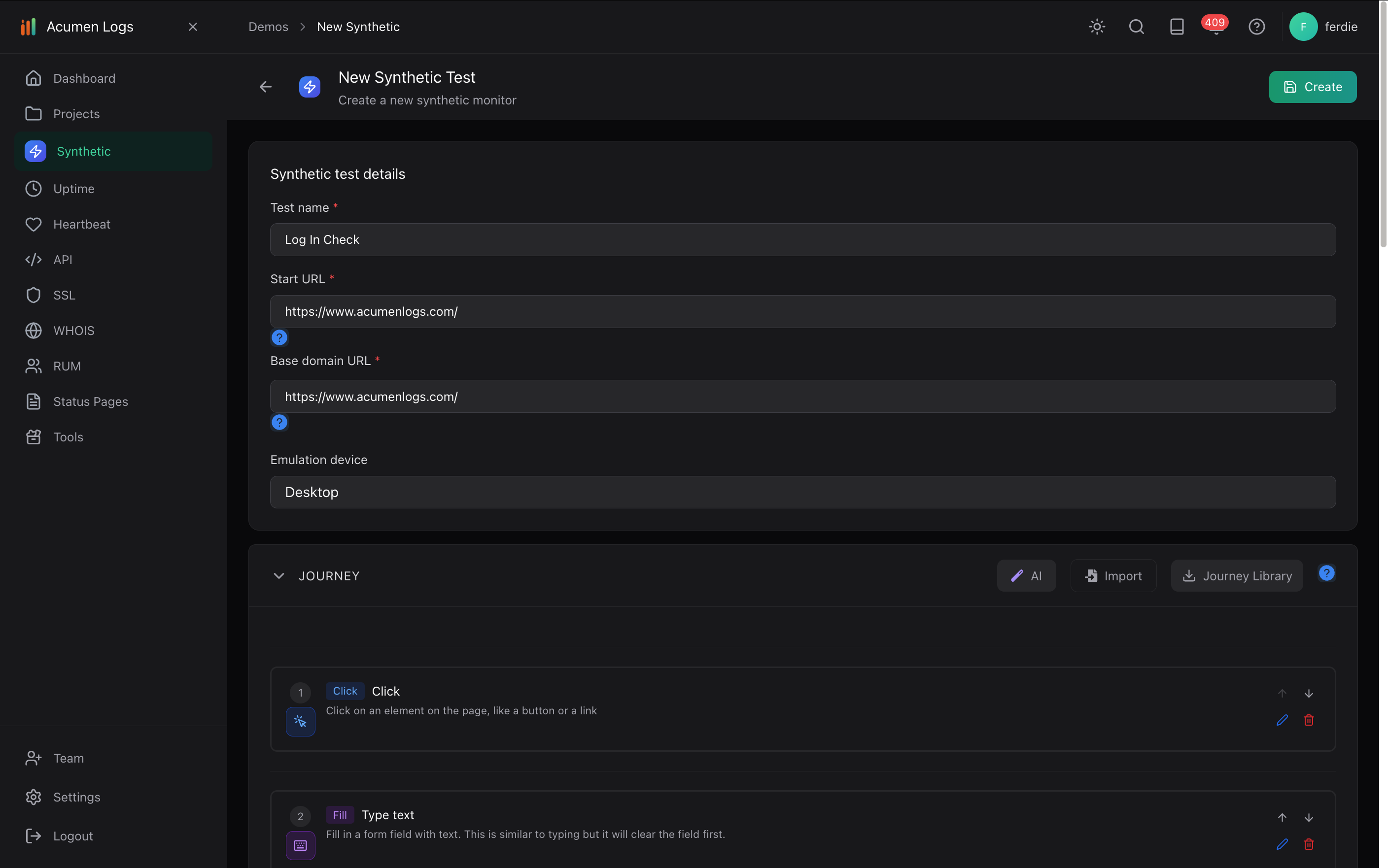
  1. In your project, select Create New Synthetic Test, name it and enter the affected page as the Startup Page URL.
  2. Set Emulated Device to Mobile. Record or build the actions you want to check and add an assertion for the expected result.
  3. Save the journey and use Run. Inspect the step results, screenshots, console errors and network requests if the test fails.
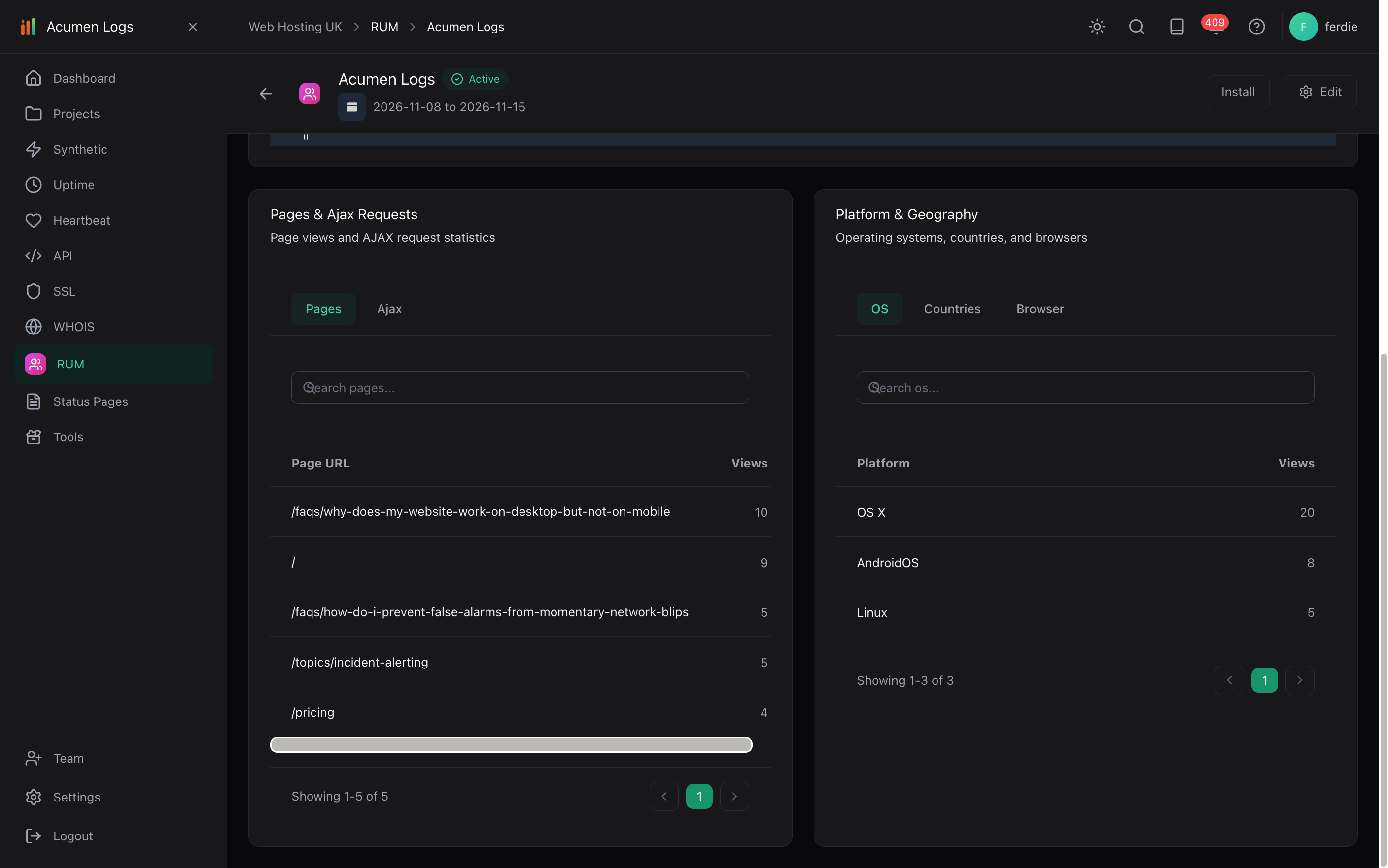
  4. For real-visitor performance, add your site to Real User Monitoring, install its snippet in your pages and compare device and browser data after traffic arrives.
Synthetic test setup showing the emulation device field.
Synthetic test setup, including the emulation device field.
RUM page views and visitor operating systems.
Real User Monitoring shows page views and visitor platforms.

The mobile setting emulates a viewport and user agent. It is useful for repeatable checks but does not replace testing on relevant physical devices and browsers. Read the synthetic setup guide.

Read full answer →
Quality Assurance (QA)

What should I test after updating my website, theme or apps?

Up arrow icon

A small update can affect an unrelated part of a website. A theme change might alter a product page, an app may conflict with another script, or a form update might prevent an enquiry from being submitted.

After a change, check key landing pages and navigation, then test important forms and login flows. For a store, select a product, add it to the cart and check the checkout journey. Repeat important steps on mobile. Use staging and test data when possible; check for unintended orders, charges and notifications if testing a live store.
How to set this up in Acumen Logs

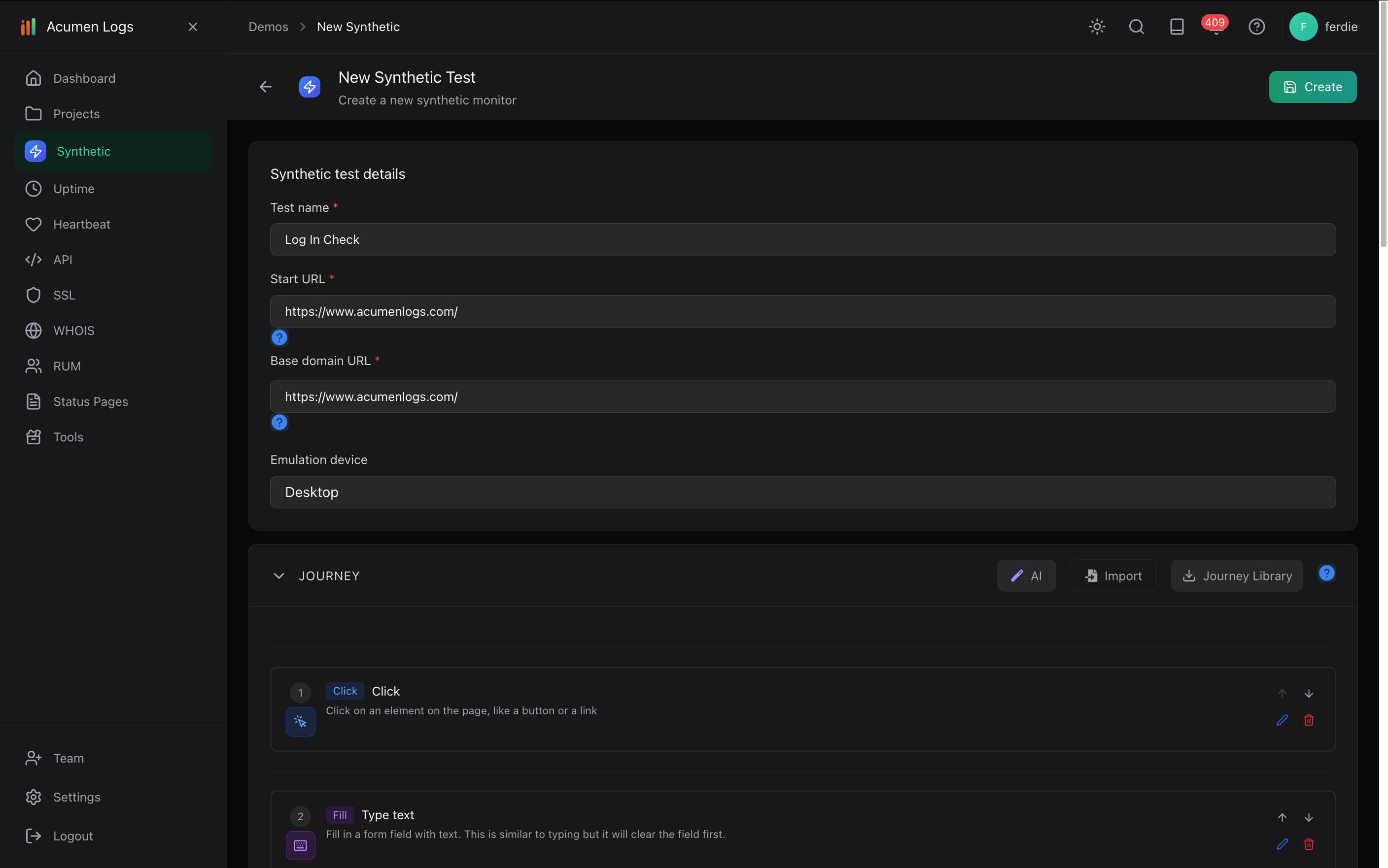
  1. In your project, select Create New Synthetic Test, name the test and enter the relevant starting page URL.
  2. Choose an emulated device, then record or build the key actions and checks for that journey. For example, open a product, select a variant, add it to the cart and verify the cart.
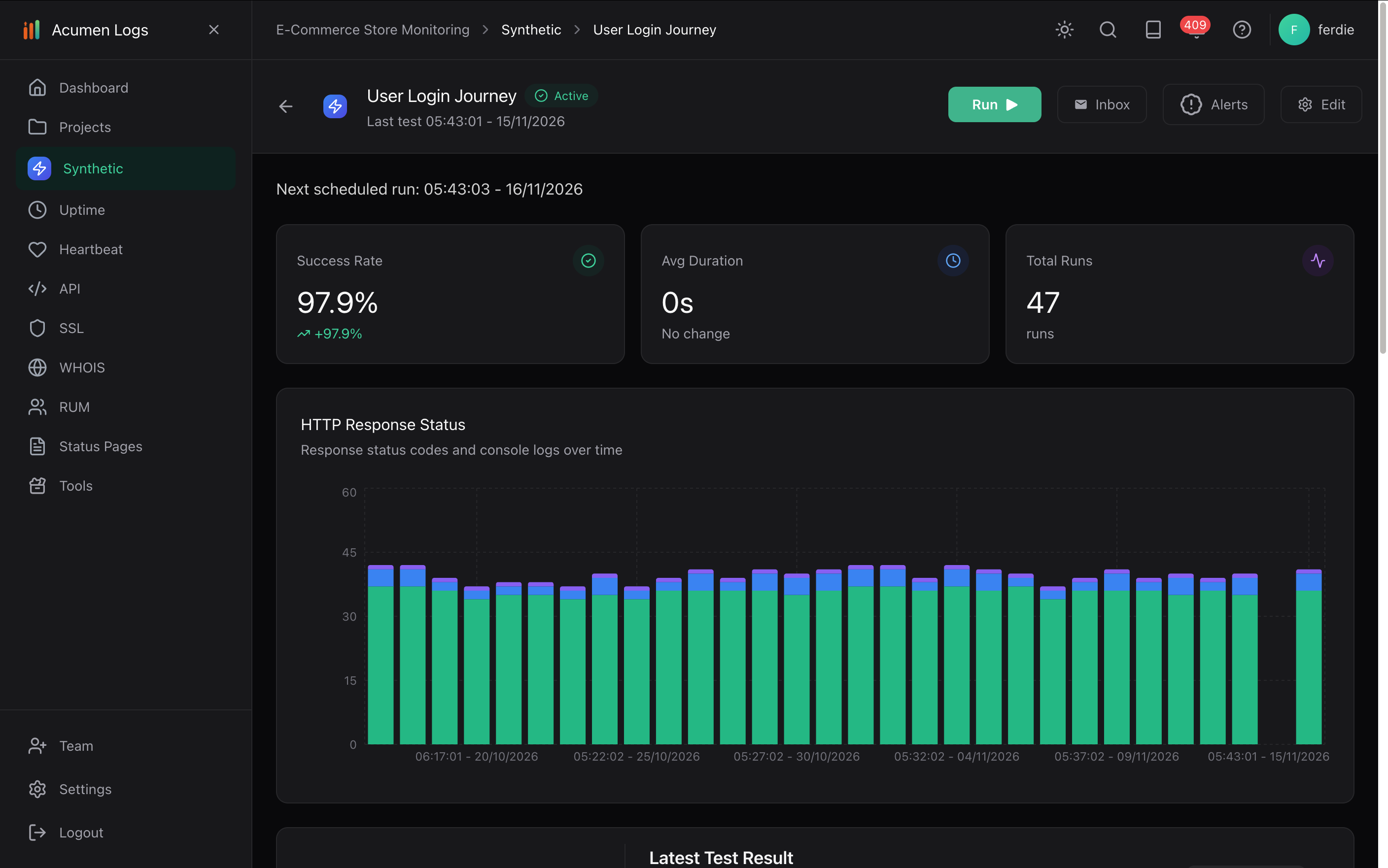
  3. Save the journey and test. After an update, use Run on the Synthetic Test Dashboard to execute it on demand.
  4. Review screenshots, console errors and network requests when a step fails. Update the journey if a legitimate change alters the flow.
  5. Where your plan supports scheduling, enable a schedule and configure alerts for the journey.
New synthetic test details and journey setup.
Set up a synthetic test and build the journey you want to check.
Synthetic journey dashboard with Run button.
Use Run on a saved synthetic journey to check it again after a change.

For checkout tests, use a staging store and payment sandbox when testing through confirmation, or stop before live submission and verify any side effects. Read about safe checkout tests.

Read full answer →

Catch Website Failures
Before Your Customers

Catch checkout failures, API crashes, and broken user journeys before they cost you trust and money.
Verified check mark
10+ monitors for free
Verified check mark
AI test generation
Verified check mark
Real-time alerts
Verified check mark
Public status pages

Trusted by Top-tier product companies

Monitor Your Websites
Get screenshots and diagnostic logs to investigate issues. Video recording is available on Essentials and Pro.
SSL, RDAP, RUM — We Have It
Easily monitor uptime, user journeys, APIs, and more. Our AI integration and clean UI help you get set up fast.
Get Alerts and Insights
Get notified by email, Slack, Microsoft Teams, desktop notifications, or webhooks, depending on your plan and alert settings.